 Jam AI
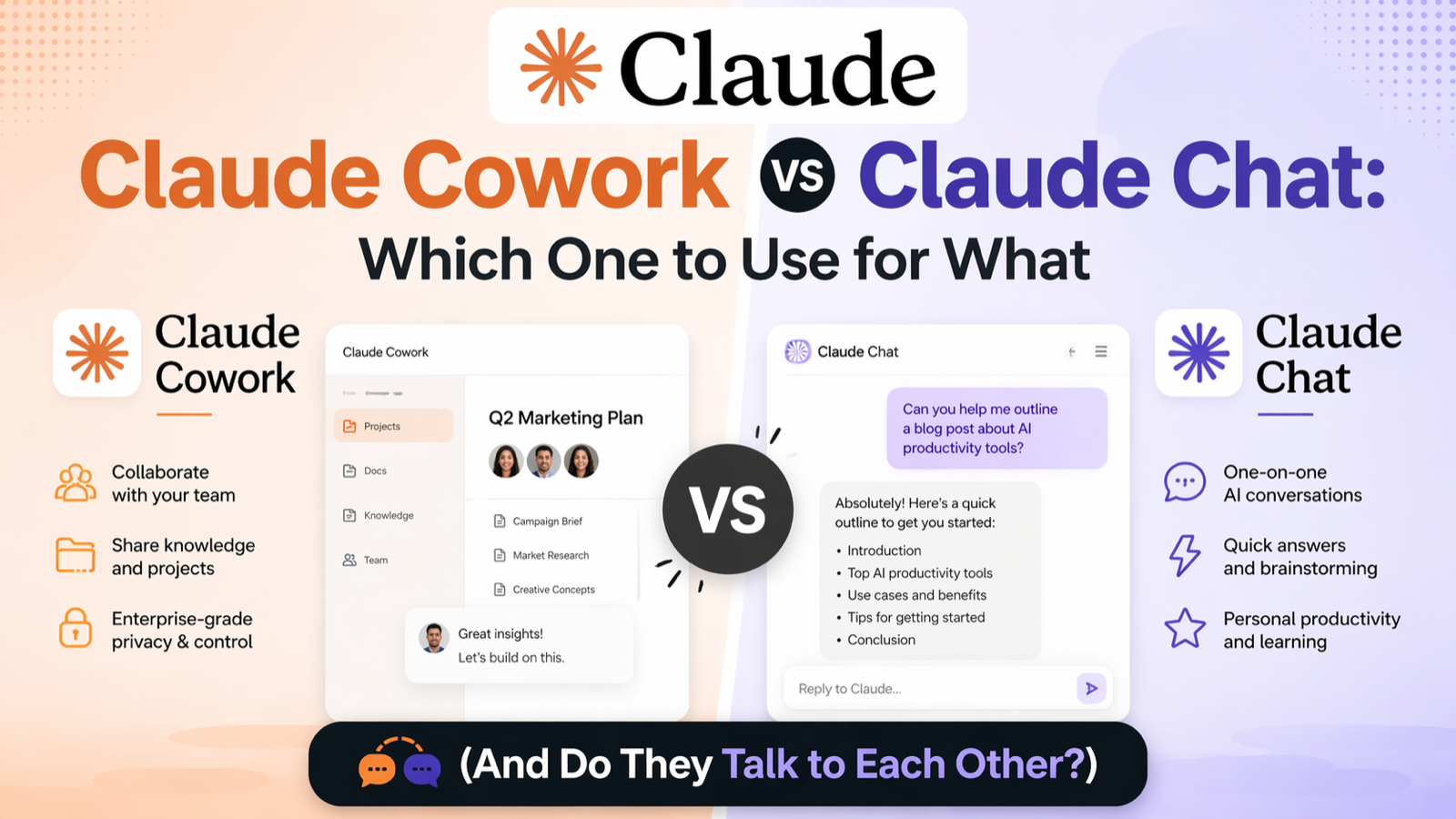
If you opened Claude one day and suddenly saw a "Cowork" tab sitting next to your normal chat window, you are not imagining things. Anthropic launched Claude Cowork as a whole new way to use Claude, and if you have been happily living inside the browser chat for the last year, the obvious question is: do I actually need this, and does it know the stuff I already told the other Claude?
Short answer: they are two different tools for two different jobs, and no, they do not automatically share memory. Let's break down when to use each one, what they can actually do, and how to stop yourself from re-pasting the same context into three different Claudes a day.
The One-Sentence Difference
Claude Chat is conversational. Claude Cowork is operational.
Chat responds to prompts. Cowork delivers outcomes. In Chat, you ask a question and get an answer, or you paste a doc and get a summary. In Cowork, you describe the finished thing you want and walk away while Claude does the assembly.
That distinction sounds small, but it changes everything about how you use the tool. In Chat, you are the project manager and Claude is the assistant. In Cowork, you are the client and Claude is the whole team.
When to Use Claude Chat (the Browser or App)
Claude Chat is your "quick draw" Claude. It is the right call any time you need a fast answer, a draft, or a second brain on a specific piece of content.
Reach for Chat when you want to:
- Draft an email, LinkedIn post, or reply in under a minute
- Brainstorm offers, hooks, titles, or content angles
- Summarize or rewrite a document you paste in or upload
- Think through a decision out loud and get structured reasoning back
- Generate an image, a quick chart, or a small interactive demo
Chat's superpower is speed and focus. Everything you give it lives inside that one conversation. It cannot see your downloads folder. It cannot open your Gmail. It is a blank-slate thinking partner every time you open a new chat, which is exactly what you want for a two-minute brainstorm or a quick draft.
The catch
Chat only knows what you type, paste, or upload. If you want it to work across twelve spreadsheets, three PDFs, and a folder of meeting transcripts, you are going to be uploading forever and hitting file size limits. That is when it is time to close the browser and open the desktop app.
When to Use Claude Cowork
Claude Cowork is built for the jobs that used to eat an entire afternoon. It lives in the Claude desktop app (macOS or Windows) and runs in an isolated virtual machine on your computer, which means it can actually touch your files, not just talk about them.
Use Cowork when you want Claude to:
- Organize local files and folders. Sort a chaotic Downloads folder, rename files consistently, deduplicate, or restructure a whole client folder by project.
- Synthesize research across multiple sources. Hand it a folder of PDFs, spreadsheets, and notes, ask for a structured brief, and let it read everything and assemble the answer.
- Build formatted deliverables. Excel spreadsheets with working formulas, PowerPoint decks, formatted reports. Not a draft you have to clean up, but the real thing.
- Automate repetitive operational work. Inbox cleanups, calendar triage, pulling data across connected apps like Slack or Google Drive.
- Use your browser for you. With the Claude in Chrome connector turned on, Cowork can navigate pages, fill forms, and run research tasks without you switching windows.
The workflow is different too. In Chat you guide Claude step by step. In Cowork, you describe the outcome, Claude proposes a plan, you approve it, and it executes, often breaking the work into parallel subtasks and looping you in only when it needs a decision.
Cowork's superpower is autonomy and scope. You start the task, walk away to get coffee or run a call, and come back to a finished deliverable.
A concrete example
Say a client just sent you a zip file with six months of receipts, three bank CSVs, and a proposal template. In Chat, you would upload the files one by one, ask for a summary, then ask for a spreadsheet, then realize Claude cannot actually save the spreadsheet so you copy-paste everything into Excel yourself. In Cowork, you point Claude at the folder and say, "Pull the expense data out of these receipts, match it against the bank statements, flag anything that does not match, and give me a formatted Excel file I can send to my bookkeeper." Then you go live your life.
Does Cowork Know What You Told Chat?
This is the question everyone asks within five minutes of opening Cowork. The answer is no, not automatically.
Chat and Cowork are designed with strict environmental boundaries:
- Chat only knows what lives inside that single conversation. It has no awareness of your local files, your other chats, or anything happening in Cowork. Everything stays locked to that one conversation window.
- Cowork runs inside an isolated virtual machine on your desktop. Standalone Cowork sessions reset when they end. The exception is the Projects feature, which lets you group related work into a persistent workspace with its own local files, links, instructions, and memory.
So if you spent an hour in Chat outlining your launch strategy and then switch to Cowork to build the actual launch assets, Cowork has no idea what you discussed. You have to paste the context in, upload the summary file, or drop it into a Cowork Project so it sticks.
Key habit to build: if you are going to hand work from Chat to Cowork, end your Chat session by asking Claude to output a clean summary you can copy into Cowork. Treat it like a handoff note to a contractor. A few minutes of translation saves you an hour of "wait, start over, here is the context."
Which One Should You Actually Open First?
A quick gut check before you start any task:
- Single question or quick draft → Chat
- One document to summarize or rewrite → Chat
- Multiple files, folders, or steps → Cowork
- You want to walk away and come back to finished work → Cowork
- You need Claude to actually save a file to your computer → Cowork
- You do not have the desktop app installed → Chat (then go install the desktop app, it is free)
Most entrepreneurs end up using both every day. Chat lives in a browser tab for quick questions and drafts. Cowork runs in the background for the bigger projects. Once you get that rhythm, you stop trying to force one tool to do the other tool's job and things move a lot faster.
A Note on Message Limits
Cowork uses more of your plan's usage than a typical chat message. Multi-step, file-heavy tasks require more compute, which means they eat through limits faster. If you are on Pro and suddenly hitting caps, Cowork is probably the reason. Max users have a lot more headroom.
The practical move: save Cowork for the stuff that actually deserves autonomy. Do not use Cowork to draft a one-line email. Use Chat for the small stuff and save Cowork for the projects where "walk away and come back to finished work" is the whole point.
Frequently Asked Questions
What is the difference between Claude Chat and Claude Cowork?
Claude Chat is the conversational browser or mobile interface where you type, paste, or upload content one message at a time. Claude Cowork is a desktop-only mode built into the Claude desktop app that can read and write to your local files, run tools in an isolated virtual machine, and execute multi-step tasks autonomously while you step away. Chat responds to prompts; Cowork delivers finished work.
Does Claude Cowork know what I told Claude Chat?
Not automatically. Claude Chat and Claude Cowork run in separate environments. Chat only knows what you type, paste, or upload in that specific conversation. Cowork runs in an isolated virtual machine on your computer. To share context between them, you have to paste it in manually, upload the same files, or use Cowork's Projects feature to create a persistent workspace with its own files, links, and memory.
Do I need to know how to code to use Claude Cowork?
No. Claude Cowork was built specifically for non-technical knowledge workers. It uses the same agentic engine as Claude Code but wraps it in a graphical desktop interface. You describe the outcome you want in plain English, Claude proposes a plan, you approve it, and Claude executes the work. No terminal, no command line, no code required.
What plans include Claude Cowork?
Claude Cowork is included on all paid Claude plans: Pro, Max, Team, and Enterprise. It is not available on the free plan. You also need the Claude desktop app installed on macOS or Windows. It does not run on the web version or on mobile, though you can send tasks to your desktop from the mobile app once they are paired.
Is Claude Cowork safe to use with my business files?
Claude Cowork runs in an isolated virtual machine on your computer, and you choose which folders and connectors it can access. Before taking any significant action, Claude shows you the plan and waits for your approval. That said, Anthropic advises against giving Cowork access to sensitive apps like banking, healthcare, or anything with regulated data, and recommends keeping backups of important files while you learn how it works.
Will Claude Cowork use up my message limit faster?
Yes. Multi-step tasks in Cowork are compute-heavy and use more of your plan's usage allowance than a typical chat message. Pro users will hit limits sooner than Max users for equivalent work. A good habit is to keep quick questions and single-draft work in Claude Chat, and save Cowork for the heavier, multi-step projects where it pays for itself in time saved.
The Takeaway
Claude Chat is your thinking partner. Claude Cowork is your operations team. They do not share memory by default, but together they cover basically everything a non-technical entrepreneur needs from AI, from a two-minute caption draft to an entire multi-file client deliverable.
Pick the right tool for the job, build the habit of handing off context cleanly between them, and you will wonder how you ever ran your business with just one AI window open.
Ready to put AI to work in your business? Grab Jam's free AI Starter Toolkit at jamout.ai and start saving time this week.