Claude Skills, Connectors and Plugins: 3 Features That Turn Claude Into Your Custom Business Operating System (And When to Use Each One)
May 05, 2026
If you've been using Claude for more than a week, you've probably seen three words floating around that sound like they should make sense but don't quite click together: Skills. Connectors. Plugins.
Are they the same thing? Are they different? Do you need all three? And which one should you set up first?
You're not alone in the confusion. These features rolled out at different times, they overlap in ways that aren't always obvious, and most of the explanations out there were written for developers. Not for you, the business owner who just wants Claude to stop being a generic chatbot and start being your custom business assistant.
So let's fix that. Here's the plain-English breakdown of all three, what each one actually does, and exactly when to use each one in your business.
The Analogy That Makes Everything Click
Here's the simplest way to think about these three features:
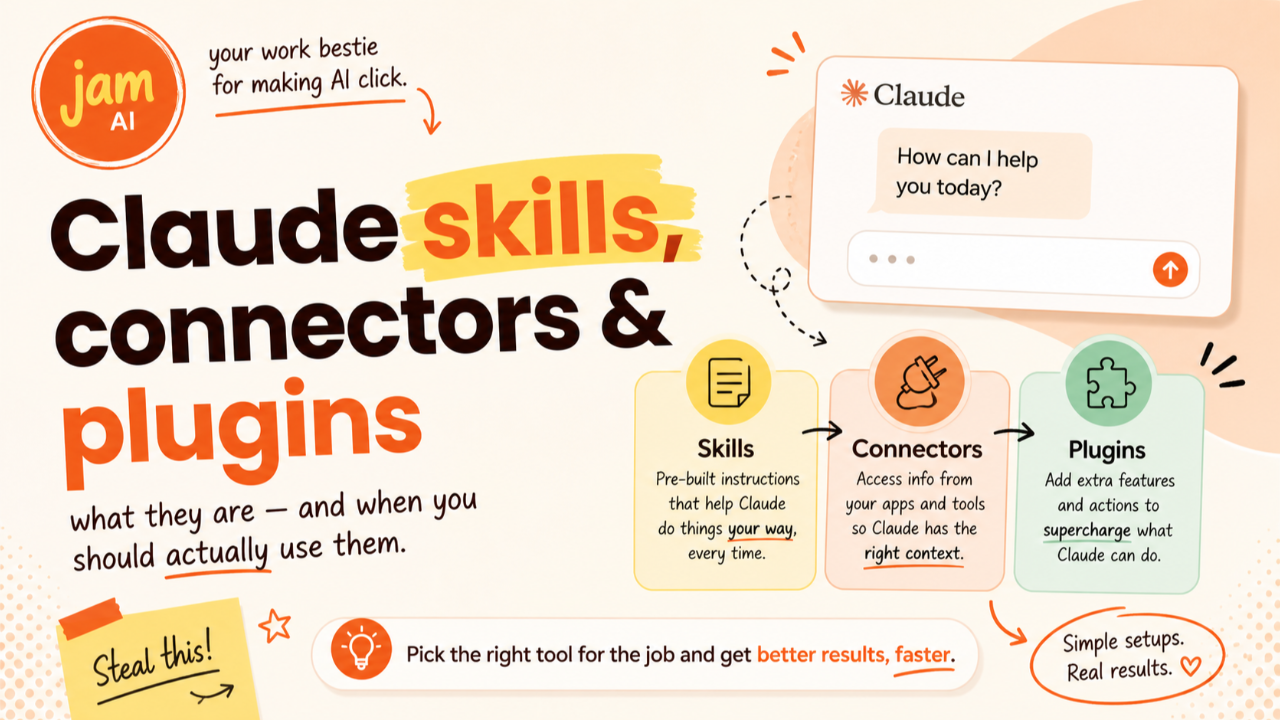
Connectors are the plumbing. They connect Claude to the outside world. Without them, Claude can't see your emails, your calendar, your files, or your revenue. With them, Claude has access to your actual business data.
Skills are the instructions. They teach Claude how to do things your way. Without them, Claude gives you generic outputs. With them, Claude follows your exact process, uses your brand voice, and produces work that matches your standards.
Plugins are the finished product. They package Connectors, Skills, and commands together into a single installable toolkit for a specific job. Without them, you'd set up each piece individually. With them, you install one thing and everything works together.
Now let's go deeper on each one.
Claude Skills: Teach Claude How YOU Work
A Claude Skill is a set of instructions stored in a simple text file that tells Claude exactly how to handle a specific, repeatable task. Every time that task comes up, Claude follows your instructions instead of improvising.
Think about the tasks you do over and over in your business. Writing blog posts. Creating client proposals. Drafting social media captions. Sending follow-up emails after sales calls. Every time you do one of these, you probably give Claude a long prompt explaining your format, your tone, what to include, what to leave out.
A Skill saves all of that into a reusable file so you never have to explain it again.
Here's a real example. Let's say you write a weekly newsletter for your audience. Every week, you tell Claude your format, your voice, your CTA, your length preference, and the topic. That's 5-10 minutes of prompting before you even get a draft. With a Skill, you write those instructions once, save them, and from that point on, you just say "write this week's newsletter about [topic]" and Claude already knows everything else.
How to Set Up Skills
There are two paths, and neither requires you to be technical:
Path 1: Let Claude build it for you. Open Claude and say "create a new skill for [task]." Claude walks you through naming it, writing the instructions, and generating the file. This is the easiest way to start.
Path 2: Install a pre-built skill. Go to Customize in the left sidebar, then Skills, then click the plus button and browse available skills. Anthropic includes built-in skills for things like creating spreadsheets, presentations, and Word documents. Toggle one on and Claude uses it automatically when relevant.
For custom skills, you zip your skill folder and upload it through the same menu. Once installed, Claude reads the description and triggers the skill whenever your request matches. You don't have to call it by name every time.
When to Use Skills
Use a Skill any time you catch yourself repeating the same instructions to Claude more than twice. If you've ever thought "I wish Claude just remembered how I like this done," that's a Skill waiting to happen.
Great Skill candidates for small business owners: Brand voice guidelines (so every piece of content sounds like you), client proposal templates (so your proposals are consistent), email sequences (so follow-ups match your tone), blog post formats (so your content structure stays tight), and meeting prep checklists (so Claude knows what you need before every call).
Claude Connectors: Give Claude Access to Your Real Data
If Skills teach Claude how to work, Connectors give Claude something real to work with.
A Connector is a one-click integration between Claude and an external app. When you connect Gmail, Claude can search your inbox, draft replies, and send messages. When you connect Google Drive, Claude can find and read your actual files. When you connect Stripe, Claude can pull your real revenue data.
Without Connectors, you're stuck in copy-paste mode. You download a spreadsheet, upload it to Claude, wait for it to process, and then ask your question. With Connectors, you skip all of that. The data is already there.
The connector directory currently includes over 200 integrations spanning email, calendars, design tools, project management, finance, and more. All directory connectors are free on every Claude plan, including the free plan.
How to Set Up Connectors
This is the simplest setup of all three features:
Step 1: Go to Settings, then Connectors (or click the plus button in the lower left of any chat).
Step 2: Find the app you want and click Connect.
Step 3: Authorize with your existing login. Done.
The whole process takes under 60 seconds. Once connected, Claude automatically detects when that tool is relevant to your conversation. You don't even need to name the connector. Ask Claude to "check my calendar" and it pulls up Google Calendar without you specifying.
When to Use Connectors
Use Connectors when you need Claude to access real, live data from an app you already use. The rule of thumb: if you're currently copy-pasting information from another app into Claude, there's probably a connector that eliminates that step.
The starter stack for most small business owners: Gmail (email search and drafting), Google Calendar (scheduling and availability), Google Drive (file search and analysis), Canva (design creation with your brand kit), and Stripe (revenue data and transaction history). Those five alone will save you hours every week.
Claude Plugins: The All-in-One Toolkit
Plugins are the newest of the three. They launched with Claude Cowork in January 2026 and immediately made headlines across the tech industry.
A Plugin bundles Skills, Connectors, slash commands, and sub-agents into a single installable package designed for a specific job function. If Skills are individual recipe cards and Connectors are the kitchen plumbing, a Plugin is the full kitchen, stocked and ready to cook.
Here's what that looks like in practice. A marketing Plugin might include: a Skill with your campaign drafting workflow, a Connector to your email marketing platform, slash commands for common tasks like "/draft-campaign" or "/review-copy," and pre-configured instructions for how Claude should handle different types of marketing requests. You install one thing and the entire workflow is ready.
Anthropic launched 11 official Plugins at release, covering legal, sales, finance, marketing, data analysis, and more. A Plugin marketplace opened in February 2026 where third-party developers can publish their own.
How to Set Up Plugins
Plugins are currently available through Claude Cowork (the desktop app). To access them:
Step 1: Open Claude Cowork or Claude Desktop.
Step 2: Go to Customize, then find the Plugins section.
Step 3: Browse the marketplace or install a specific plugin. One click and it's active.
For teams, an admin enables the Plugin at the organization level, and then individual team members can install and configure it.
When to Use Plugins
Plugins are most valuable in two scenarios. First, when you're setting up Claude for a team and want everyone to have the same workflow without configuring things individually. Second, when you want a complete, job-specific toolkit without building it from pieces.
If you're a solo business owner, you probably don't need Plugins right away. Skills and Connectors cover most of what you need. Plugins become valuable when you're scaling, bringing on team members, or want a turnkey solution for a specific function like sales prospecting or legal document review.
Skills + Connectors + Plugins: How They Work Together
The real power shows up when these three features layer on top of each other.
Here's a real workflow that uses all three:
You have a Connector to Gmail and Google Calendar so Claude can see your inbox and schedule. You have a Skill that teaches Claude your meeting prep process: pull the attendee's recent emails, check past meeting notes, and create a one-page brief in your preferred format. And you have a Plugin that bundles this entire workflow together with a slash command so your team can run the same process with one click.
Another example: Your Connector to Stripe gives Claude access to your revenue data. Your Skill teaches Claude how to format your monthly financial summary with the specific metrics you track. And a Plugin could package that into a recurring workflow that runs automatically at the end of every month.
They're layers in a stack, not competing options. Connectors handle the data flow. Skills provide the methodology. Plugins wrap everything into something you can install and share.
Where to Start: The Priority Order for Small Business Owners
If you're feeling overwhelmed, here's the order I recommend:
Week 1: Connectors. Start with Gmail, Google Calendar, and Google Drive. These take 60 seconds each and give you immediate value. You'll feel the difference in your very first conversation when Claude can actually see your real data.
Week 2: Your first Skill. Pick the one task you repeat most often with Claude. Maybe it's writing social posts, drafting client emails, or creating content in your brand voice. Ask Claude to "create a new skill" and build it together. Save it, and you'll never have to explain that process again.
Week 3+: More Skills, more Connectors. Add Canva, Stripe, or Slack as Connectors. Build Skills for your other repeatable workflows. Each one you add makes Claude more useful and more personalized to your business.
Eventually: Plugins. When you're ready to scale, bring on team members, or want turnkey workflows for specific functions, explore the Plugin marketplace. But don't rush here. Skills and Connectors alone will transform how you work.
Frequently Asked Questions
What is the difference between Claude Skills, Connectors, and Plugins?
Skills teach Claude how to do something by giving it reusable instructions for specific tasks. Connectors give Claude access to external apps like Gmail, Google Drive, or Stripe so it can read and act on your real data. Plugins bundle Skills, Connectors, and commands into a single installable package designed for a specific job function like sales, marketing, or legal work.
Do I need to be technical to use Claude Skills?
No. You can ask Claude to build a skill for you by saying "create a new skill" and following the conversational prompts. Claude walks you through naming it, writing the instructions, and generating the file. You can also install pre-built skills from the directory without writing anything yourself. The format is a simple text file, not code.
Are Claude Skills free?
Yes. Skills are available on all Claude plans including the free plan. You can toggle on built-in example skills or upload your own custom skills at no additional cost. Skills require the Code execution and file creation feature to be enabled in your settings.
How do I install a Claude Skill?
In Claude.ai, go to Customize then Skills, click the plus button, and either toggle on a built-in skill or upload a ZIP file containing your custom skill folder. Once installed, Claude automatically detects when the skill is relevant to your conversation and uses it. You do not need to manually call the skill each time.
What are Claude Connectors and how do they work?
Claude Connectors are one-click integrations built on the Model Context Protocol (MCP) that let Claude access your external tools like Gmail, Google Calendar, Canva, Stripe, and over 200 other apps. You connect them through Settings then Connectors, authorize with your existing login, and Claude can then search, read, and take actions inside those tools during your conversations.
What are Claude Plugins and who are they for?
Claude Plugins are pre-packaged bundles that combine Skills, Connectors, slash commands, and sub-agents into a single installable unit for a specific job function. They launched with Claude Cowork in January 2026. Plugins are most useful for teams who want a complete, ready-to-go workflow without configuring individual pieces. For example, a marketing plugin might include skills for campaign drafting, connectors to your email platform, and slash commands for common tasks.
Should I start with Skills, Connectors, or Plugins?
Start with Connectors. They take under 60 seconds to set up and give you immediate value by letting Claude see your real business data. Then add Skills for any workflow you repeat more than twice, like writing blog posts in your brand voice or creating client proposals. Only explore Plugins if you are setting up Claude for a team or need a complete job-specific toolkit out of the box.
The Bottom Line
Most people are still using Claude like a fancy search engine. They type a question, get an answer, and move on. That's Level 1.
When you connect Claude to your real tools, teach it your real workflows, and package those workflows into reusable systems, you're operating at a completely different level. You're not just asking Claude questions anymore. You're running your business through it.
And the best part? You can start today. Pick one Connector. Build one Skill. Watch what happens when Claude actually knows your business instead of guessing.
Ready to put AI to work in your business? Grab Jam's free AI Starter Toolkit at jamout.ai and start saving time this week.
Build Your Business with AI — Even If You’re Overwhelmed, Busy, or Just Starting Out
Club Jam gives you the tools, training, and AI team to launch, automate, and grow your business — all for $47/month. No tech confusion. Just fast wins.
Not sure where to start? Let us help you by doing a consult. We can help you identify areas within your business that can be automated.
We hate SPAM. We will never sell your information, for any reason.