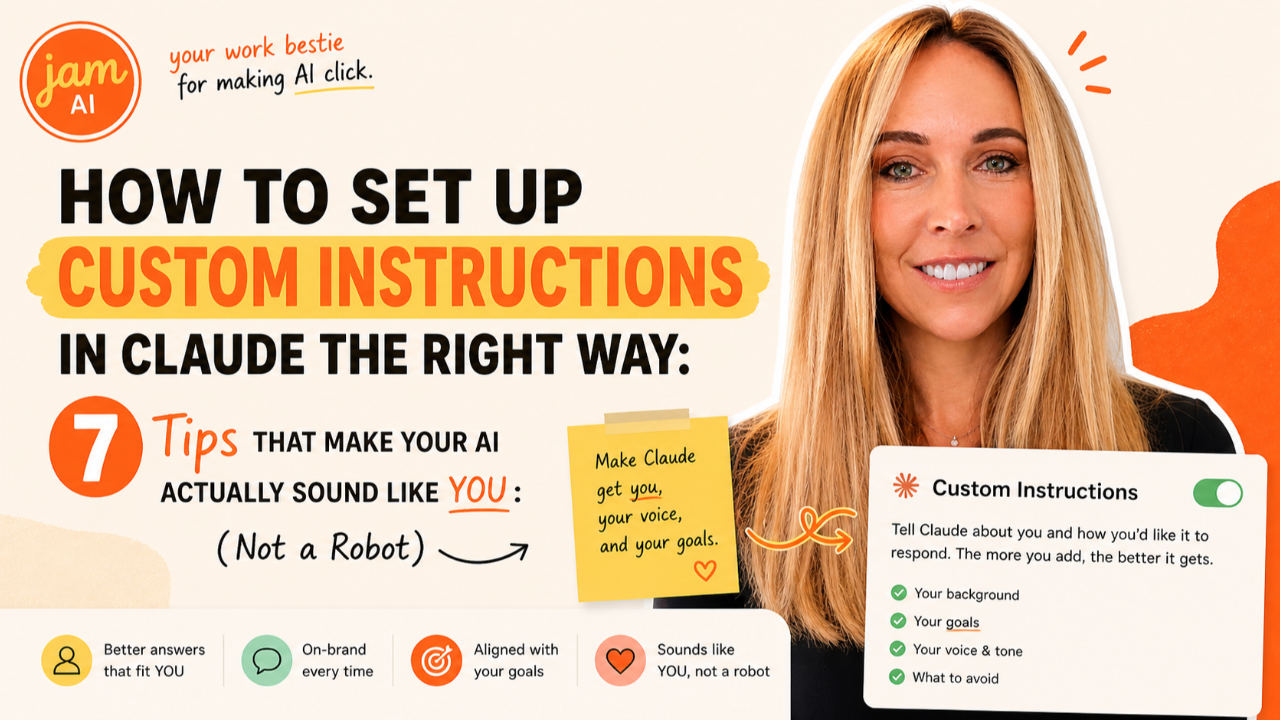
How to Set Up Custom Instructions in Claude the Right Way: 7 Tips That Make Your AI Actually Sound Like You (Not a Robot)
May 05, 2026Here's something that drives me a little crazy. Claude has this incredible customization feature sitting right there in your settings. It takes five minutes to fill out. It's free on every plan. And it fundamentally changes the quality of everything Claude gives you.
And most people have never touched it.
They leave it blank. They open Claude, start typing, and wonder why the responses feel generic, overly formal, or just... not them. They assume that's what AI sounds like. They don't realize they're working with an assistant who has no idea who they are, what they do, or how they like things done.
Custom instructions fix all of that. And setting them up well is the difference between an AI that gives you "fine" outputs and one that gives you outputs you'd actually use.
Here's how to do it right.
Where to Find Custom Instructions
Before we get into the tips, let's make sure you can find the thing. In Claude.ai, click your profile icon in the lower left corner, then go to Settings. Look for the field that says "What preferences should Claude consider in responses?" That text box is your custom instructions (officially called Profile Preferences).
Type directly into it. Click Save. Done. Whatever you write there loads automatically into every new conversation from that point forward. You don't have to reference it, paste it, or activate it. It's always on.
Now, what do you actually write in there?
Tip 1: Lead With Who You Are, Not What You Want
The most common mistake I see is people jumping straight to formatting preferences. "Keep things short." "Use bullet points." "Don't be too formal." Those are fine instructions, but they're not the most important ones.
Start with context about you. Your name, your business, your role, who you serve. Two to three sentences max.
Something like: "I'm [name], the founder of [business]. We help [audience] with [thing]. I handle marketing, sales, and content myself."
Why does this matter so much? Because Claude calibrates every single response based on who it thinks it's talking to. When Claude knows you're a solo entrepreneur running an online education business, it gives you completely different advice than if it thinks you're a corporate marketing manager at a Fortune 500 company. Same question, wildly different answers.
That context changes Claude's entire frame of reference before you've even asked a question. Lead with it.
Tip 2: Tell Claude What NOT to Do
This is the tip that makes the biggest immediate difference, and almost nobody does it.
You know those little things that annoy you about AI writing? The phrases that make you cringe? The formatting habits that don't match how you actually communicate? Write them down.
Here are some examples from real entrepreneurs I've worked with:
"Never start a response with 'Great question!' or 'Absolutely!'"
"Do not use em dashes in any content you write for me."
"Never use the phrase 'in today's fast-paced world' or 'dive deep into' or 'let's unpack.'"
"Don't use corporate buzzwords like 'synergy,' 'leverage,' or 'align.'"
"Stop asking me if I want you to continue. Just continue."
The more specific you are about what you don't want, the less time you spend editing Claude's output. Think about the last five times you rewrote something Claude gave you. What did you change? Those patterns belong in your instructions.
Tip 3: Include Your Tech Stack
This is one of those small details that makes a surprisingly big difference. When Claude knows which tools you use, it gives you advice and outputs that actually fit your setup instead of generic recommendations for platforms you've never heard of.
Keep it simple. Just list the major tools: "I use Kajabi for my website, Stripe for payments, Canva for design, Gmail and Google Calendar for communication, and Instagram and TikTok for social media."
Now when you ask Claude to help you build a landing page, it knows to think in Kajabi terms. When you ask about payment workflows, it thinks Stripe. When you ask for social media content, it frames things for Instagram and TikTok instead of LinkedIn or Twitter.
This one line of context eliminates an enormous amount of back-and-forth where you'd otherwise have to say "no, I don't use WordPress" or "I need this for Canva, not Figma."
Tip 4: Define Your Communication Style in Concrete Terms
Most people write something vague like "be conversational" or "keep it casual." That's better than nothing, but it doesn't give Claude enough to work with. Casual to you might be very different from casual to someone else.
Get specific. Here's what specific looks like:
"Write in short paragraphs, two to three sentences max. Use contractions. Write like you're texting a smart friend, not writing a term paper. Use real examples instead of abstract concepts. End with a clear action step, not a summary."
Or for a more professional context: "Write in a warm but authoritative tone. Lead with the recommendation, then explain the reasoning. Avoid hedging language like 'you might want to consider.' Be direct."
The test: Could someone else read your style instructions and write content that sounds like you? If the answer is no, you need to be more specific.
Tip 5: Keep It Under 500 Words
Everything in your custom instructions loads as tokens at the start of every single conversation. That means long instructions eat into the context space Claude has available for your actual work.
A 2,000-word instruction set might feel thorough, but it's using up space that could go toward analyzing a document, drafting a longer piece of content, or holding a more complex conversation.
The sweet spot is 150 to 400 words. Focus on the 20 percent of preferences that cover 80 percent of your use cases. If something only matters for one specific type of task, it belongs in a Project instruction, not your global preferences.
Here's a good gut check: if you can't read your custom instructions in 90 seconds, they're too long. Edit them down. Be ruthless. Every sentence should earn its place.
Tip 6: Use Profile Preferences and Project Instructions Together
This is the power move that most people miss entirely. Claude has two layers of customization, and they stack.
Profile Preferences are your global instructions. They apply to every conversation. This is where your identity, your tone, your tech stack, and your universal do's and don'ts live.
Project Instructions are scoped to a specific Claude Project. They apply only to conversations inside that project. This is where task-specific context lives: "This project is for my email newsletter. The audience is small business owners. Send frequency is weekly. Include a CTA to my course at the end of every issue."
The two layers load together. Claude reads your Profile Preferences first (who you are and how you work), then adds your Project Instructions on top (what you're working on right now). You never need to repeat your global preferences inside a project.
Think of it like this: Profile Preferences are the operating system. Project Instructions are the app you're currently running.
For entrepreneurs, this is the setup that changes everything. Create a project for each major workflow. One for blog content. One for client proposals. One for social media. One for email marketing. Each project gets its own context while inheriting your global voice and preferences automatically.
Tip 7: Review and Update Monthly
Custom instructions are not a set-it-and-forget-it feature. Your business changes. Your tools change. Your preferences evolve. What worked three months ago might not fit today.
Set a reminder to review your instructions once a month. Here's what to look for:
Outdated context. Did you switch from Mailchimp to ConvertKit? Did you change your business name? Did you stop using a particular tool? Update it.
New patterns. Are you consistently correcting Claude on something? That correction belongs in your instructions so you don't have to make it again.
Stale preferences. Is there an instruction in there that you don't actually care about anymore? Remove it. Every instruction should be earning its place.
Pro tip: Add a "last updated" line at the bottom of your instructions. Something like "Last updated: May 2026." It sounds small, but it gives you a visual cue every time you open your settings. If that date is more than two months old, it's time for a review.
A Real Example (What Mine Looks Like)
Here's the general structure I recommend for entrepreneurs. Fill in the brackets with your own details:
Who I am: "I'm [name], the founder of [business name]. I help [audience] with [what you do]. I'm a one-person team [or describe your team]."
My tools: "I use [list your 5-7 main tools with what each is for]."
My communication style: "Write in [describe your tone]. Keep paragraphs [short/medium]. Use [contractions/no contractions]. Prioritize [action steps/explanations/examples]."
What I don't want: "Never [list 3-5 specific things you hate in AI output]. Do not [list formatting or structural habits to avoid]."
Default behavior: "When I ask for content, default to [your preferred length/format]. When I ask for advice, [give me options/give me one recommendation/challenge my thinking]."
Last updated: "[Month Year]."
That entire thing fits in about 200 words. It takes five minutes to write. And it transforms every conversation you have with Claude from that point forward.
The Difference It Makes
Without custom instructions, you're starting every conversation cold. Claude is guessing your industry, your tone, your preferences, your tools, and your level of expertise. It's defaulting to safe, generic, middle-of-the-road responses that technically answer your question but don't actually feel like something you'd use.
With custom instructions, Claude shows up knowing who you are. It writes in your voice. It recommends tools you actually use. It skips the things that annoy you. It structures things the way you like them. Every response is closer to final draft quality because the baseline context is already there.
Five minutes of setup. Every conversation improved. Forever.
That's the real unlock. Not a fancier prompt. Not a more expensive subscription. Just telling Claude who you are and how you like things done.
Frequently Asked Questions
Where do I find custom instructions in Claude?
In Claude.ai, click your profile icon in the lower left corner, then go to Settings. You will see a field labeled "What preferences should Claude consider in responses?" That text box is your custom instructions, also called Profile Preferences. Whatever you type there loads automatically into every new conversation. It is available on all Claude plans including the free plan.
What should I write in my Claude custom instructions?
Start with four things: who you are and what your business does (two to three sentences), how you want Claude to communicate (tone, length, formatting preferences), what tools and platforms you use (your tech stack), and what you do not want Claude to do (specific phrases, habits, or patterns to avoid). Keep it under 500 words. Focus on preferences that apply to every conversation, not project-specific details.
What is the difference between Claude Profile Preferences and Project Instructions?
Profile Preferences apply to every conversation you have with Claude. They define who you are and how you work. Project Instructions apply only inside a specific Claude Project. They define what you are working on and how you want Claude to handle that particular task. The two features stack: Profile Preferences load first, then Project Instructions add context on top. You do not need to repeat your universal preferences inside every project.
Are Claude custom instructions available on the free plan?
Yes. Profile Preferences are available on all Claude plans including the free plan. Projects are also available on free plans with a limit of five projects. Styles, which let you switch between different communication formats, are also available on all plans. There is no paywall for customizing how Claude works for you.
How long should my Claude custom instructions be?
Keep your Profile Preferences under 500 words. Everything you write loads as tokens at the start of every conversation, so overly long instructions take up context space that could go toward your actual work. A well-written set of custom instructions is usually between 150 and 400 words. Focus on the 20 percent of preferences that cover 80 percent of your use cases.
How often should I update my Claude custom instructions?
Review your custom instructions at least once a month. Your business evolves, your tools change, your preferences shift. If you notice Claude consistently getting something wrong or making outdated assumptions, that is a signal to update your instructions immediately. Adding a last updated date at the bottom of your instructions helps you remember when you last reviewed them.
What is the difference between Claude custom instructions and ChatGPT custom instructions?
ChatGPT splits custom instructions into two boxes: what ChatGPT should know about you and how it should respond. Claude uses one open text field with no enforced structure, which is more flexible because you can write your preferences as one coherent brief instead of splitting context between two boxes. Claude also has a separate Styles feature for switching communication formats, which ChatGPT handles differently through its own custom GPT system.
Your Next Step
Open Claude right now. Go to Settings. Fill in your custom instructions using the structure from Tip 7. It takes five minutes. Then start a new conversation and ask Claude something you normally ask. Notice the difference.
That's the unlock. Not a better prompt. A better foundation.
Ready to go deeper? Grab Jam's free AI Starter Toolkit at jamout.ai and start making AI actually work for your business.
Build Your Business with AI — Even If You’re Overwhelmed, Busy, or Just Starting Out
Club Jam gives you the tools, training, and AI team to launch, automate, and grow your business — all for $47/month. No tech confusion. Just fast wins.
Not sure where to start? Let us help you by doing a consult. We can help you identify areas within your business that can be automated.
We hate SPAM. We will never sell your information, for any reason.